Webhooks
This feature is only available to licensed users
Webhooks let other apps and services trigger FileFlows. Each webhook has its own URL, and when that URL is called, FileFlows runs the webhook's JavaScript with the details of the request.
For example, you can have Sonarr or Radarr call a webhook when they import a file so FileFlows processes it straight away, reprocess a file from a home automation system, or let a dashboard ask FileFlows for its current status.
The webhooks list shows each webhook's route, method, authentication, and when it last ran. Use the toggle on a webhook to enable or disable it.
General
Name
A name for the webhook.
Description
What the webhook does. A description is needed to share the webhook.
Webhook URL
The address to give the other app or service. Copy it from here, or with Copy URL in the webhooks list.
Enabled
A disabled webhook responds with a 404 Not Found, as if it did not exist.
Route
The webhook is called at /webhook/ followed by its route, e.g. a route of sonarr-import is called at
https://fileflows.example.com/webhook/sonarr-import
A route can only contain letters, numbers and - . _ +, and each webhook needs its own route.
The route fenrus is reserved for the Fenrus Dashboard Endpoint, a webhook cannot use it.
Method
The HTTP method the webhook is called with: GET, POST, PUT or DELETE. A call with any other method gets a 405 Method Not Allowed.
Response
What the caller gets back.
| Response | Description |
|---|---|
| None | Responds straight away with a 202 Accepted and runs the script in the background. Use this for most webhooks, the other app or service does not have to wait. |
| Text | The caller waits for the script and gets what the script returns as text/plain. |
| JSON | The caller waits for the script and gets what the script returns as application/json. |
Timeout
Only for a Text or JSON response. How many seconds the caller waits for the script, from 1 to 300 (default 30). If the script takes longer, the caller gets a 504 Gateway Timeout.
A webhook with no response can run for up to 5 minutes.
Code
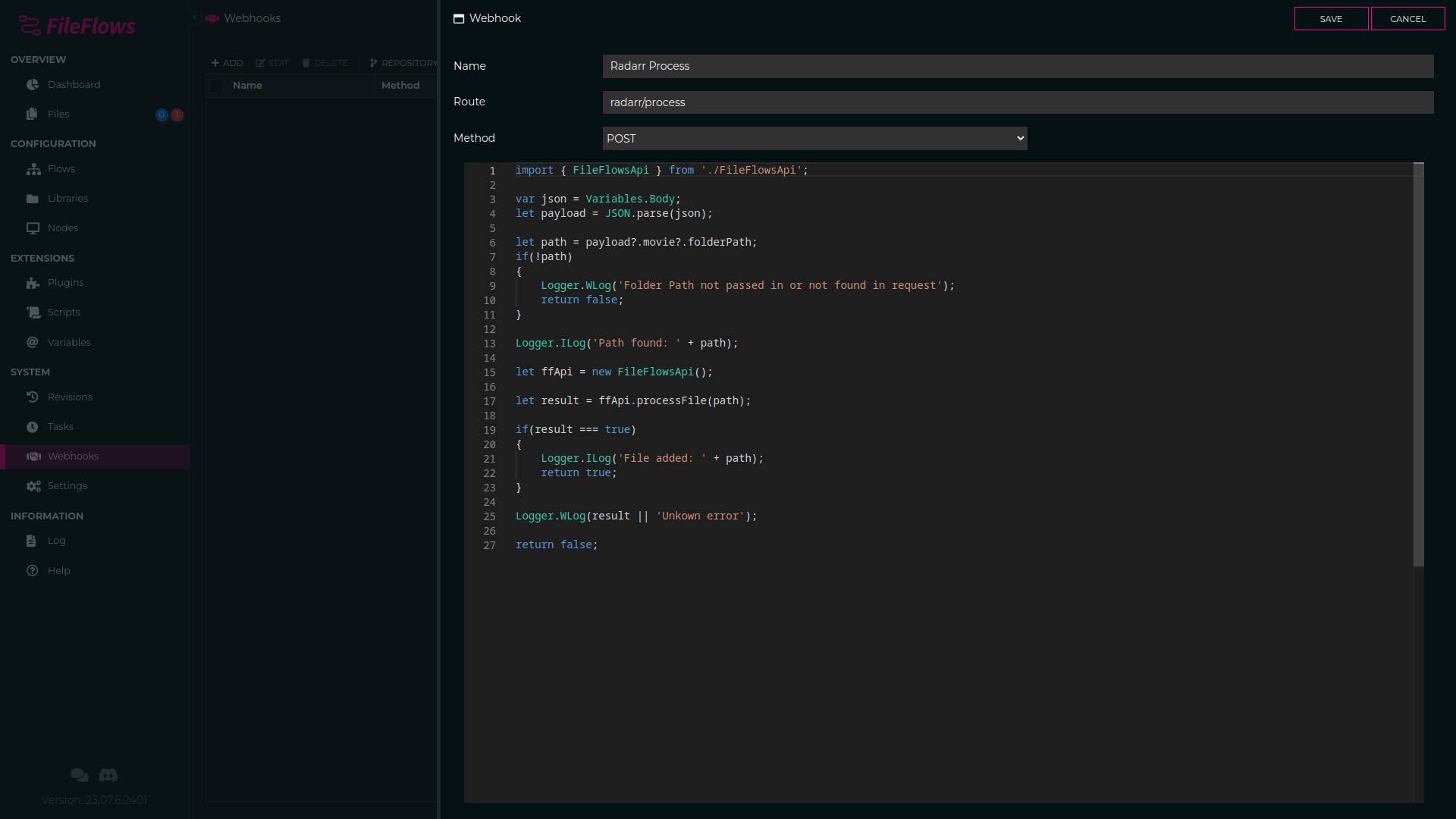
The JavaScript run when the webhook is called. The code editor has IntelliSense for Request and Response.
Request
Request has what the webhook was called with.
| Property | Description |
|---|---|
Request.Method | The HTTP method, e.g. POST |
Request.Path | The path, e.g. /webhook/sonarr-import |
Request.IPAddress | The IP address of the caller |
Request.ContentType | The content type of the body, e.g. application/json |
Request.Json | The body parsed as JSON, null if the body is not JSON |
Request.Form | The fields of a URL encoded or multipart form body, e.g. Request.Form.name (uploaded files are not kept) |
Request.Query | The query string values, e.g. Request.Query.name |
Request.Headers | The headers, names in lower case, e.g. Request.Headers['user-agent'] |
Request.Body | The raw body |
The webhook's token is never included in Request.Query or Request.Headers.
The body can be up to 1 MB, a larger body gets a 413 Payload Too Large.
Response
Only for a Text or JSON response. What the script returns is the body of the response, and Response sets the rest.
| Member | Description |
|---|---|
Response.Status | The status code, e.g. 404. When not set it is 200, or 204 when the script returns nothing. |
Response.SetHeader(name, value) | Sets a response header. Content-Type, Content-Length, Set-Cookie and the connection headers can not be set. |
If the script fails, the caller gets a 500 Internal Server Error.
Other Helpers
Webhook scripts can use the same helpers as other scripts, including Logger, Notification, Variables, http and the FileFlows object, e.g. FileFlows.ProcessFile(path) to process a file.
Security
Webhooks are called by other apps and services, so each webhook has its own authentication instead of a FileFlows login.
Authentication
| Authentication | Description |
|---|---|
| Token | Each call must include the webhook's token. Works with any app or service that lets you enter a URL. This is the default. |
| Signature | Each call is signed with a shared secret, the secret itself is never sent. Use this when the other app or service can sign its requests. |
| None | Anyone who knows the URL can call the webhook. Only use this on a private network, or with allowed IP addresses. |
A call that fails authentication gets a 401 Unauthorized.
Token
A token is generated for the webhook, and can be regenerated at any time. The token can be sent in any of these ways:
- In the query string:
https://fileflows.example.com/webhook/sonarr-import?token=abc123 - In the
X-Webhook-Tokenheader - As a bearer token:
Authorization: Bearer abc123
Signature
A secret is generated for the webhook. Enter the same secret in the other app or service.
Each call is signed with an HMAC of the raw body, using the secret as the key.
- Signature Header – The header the signature is sent in,
X-Signatureby default. For example GitHub sendsX-Hub-Signature-256. - Algorithm –
SHA-1,SHA-256(default) orSHA-512.
The signature can be hex or base64, and can be prefixed with the algorithm, e.g. sha256=.
Allowed IP Addresses
Optional. Limits who can call the webhook, leave it empty to allow anyone. Each entry can be:
| Entry | Example |
|---|---|
| An address | 10.0.0.5 or fe80::1 |
| A CIDR | 10.0.0.0/16 |
| A range | 10.0.1.1-10.0.2.10 |
| A wildcard | 10.0.0.* |
| Localhost | localhost |
A call from any other address gets a 403 Forbidden.
Limits
To protect FileFlows, calls to webhooks are limited.
- A webhook accepts up to 60 calls a minute, and runs up to 5 scripts at once. Calls over these limits get a
429 Too Many Requests. - An IP address with 10 failed calls in 10 minutes is blocked for 15 minutes. A failed call is one to a route that does not exist, from an address that is not allowed, or that fails authentication.
Run History
Select a webhook and click Run History to see its last 20 runs, or click the last run on the webhook.
Each run shows if it succeeded, what the script returned, and its log. The top of the log has the request: the method, path, caller's IP address, how long it ran, the status it responded with, the headers, the query string and the body (the first 4,000 characters).
The run history is the easiest way to see exactly what another app or service sends, and to write the script to match.
Help
A webhook can have help, instructions written in markdown on the Help tab, for anyone using it. This is especially useful when sharing it to the repository.
See Help for how to write help and what formatting can be used.
Sharing
Webhooks can be shared to, and imported from, the FileFlows repository. Use Share on a webhook to share it, and the Repository button to browse and import shared webhooks.
A shared webhook includes its code, route, method, response, timeout, and the type of authentication. It never includes the token, secret, allowed IP addresses or run history.
An imported webhook gets its own token or secret, and a unique route. Importing it again updates its code and settings, and keeps its route, token, secret and allowed IP addresses.
Examples
Process a File
A webhook with no response, so the caller gets a 202 straight away. The caller posts JSON with the path of the file, e.g. { "path": "/media/tv/show/episode.mkv" }.
let path = Request.Json?.path;
if (!path) {
    Logger.WLog('No path in the request');
    return false;
}

Logger.ILog('Processing: ' + path);
FileFlows.ProcessFile(path);
return true;
Calling it with the token in the query string:
curl -X POST "https://fileflows.example.com/webhook/process-file?token=abc123" \
     -H "Content-Type: application/json" \
     -d '{ "path": "/media/tv/show/episode.mkv" }'
Status
A GET webhook with a JSON response, so a dashboard can show how many files are waiting.
let status = FileFlows.GetStatus();
return {
    unprocessed: status.Unprocessed,
    processing: status.Processing,
    failed: status.Failed
};
Status Codes
With a Text or JSON response, set Response.Status to tell the caller something went wrong.
let path = Request.Query.path;
if (!path) {
    Response.Status = 400;
    return 'No path given';
}
if (FileInfo(path).Exists === false) {
    Response.Status = 404;
    return 'File not found: ' + path;
}
FileFlows.ProcessFile(path);
return 'Processing ' + path;