Access Control
This feature is only available to licensed users
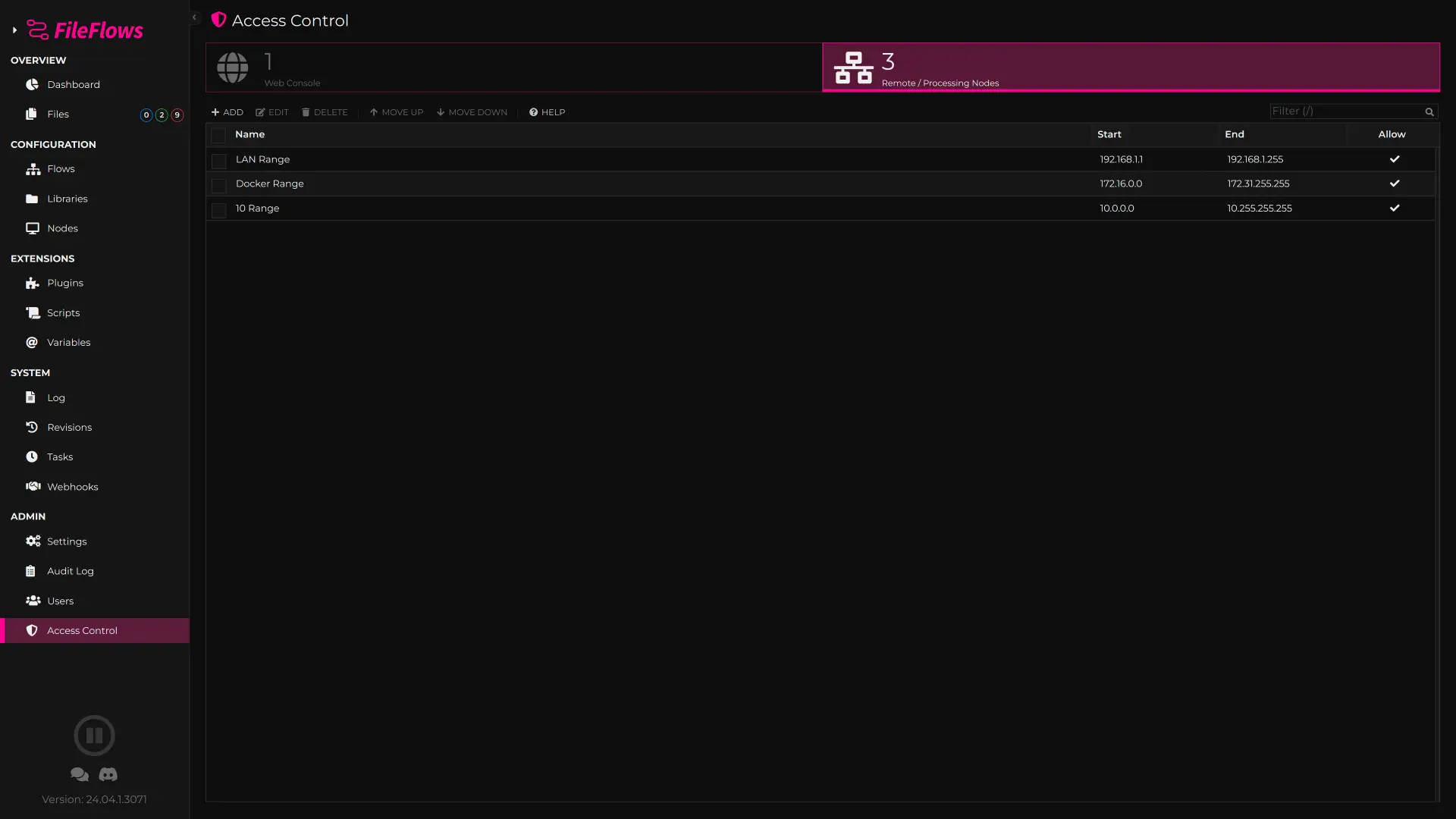
Access control allows you to limit access to the web console and the remote services.
The access control is executed in the order they appear in the list, as soon as an IP Address matches a given entry, that will allow or block the connection.
No entries
If there are no entries in the list then all connections are allowed
One Or More
If there are one or more entries in the list and the IP Address of the connection does not match any entries in the list, then that connection will be blocked.
Local Connections
A local connection from 127.0.0.1 or ::1 will always be allowed.
Web Console
The web console entries apply to everything except the Agents, including the web console itself and the API. Webhooks and Flux are not checked, they have their own authentication.
Remote Services
These are the services used by the Agent. You can have different security lists for the web console and the remote services for enhanced security.
Reverse Proxies
If FileFlows is behind a reverse proxy, the connection's address is the proxy's, so the address of the client is read from the X-Forwarded-For, True-Client-IP or CF-Connecting-IP header the proxy adds.
These headers are only used when the connection comes from this machine or a private network (for example 192.168.x.x, 10.x.x.x or a Docker network), where a reverse proxy would be. A connection from anywhere else can not use them to claim to be another address.
Turning Off
If you have misconfigured access control and are blocked, you can turn it off by adding the following to the server.config file found in the Data directory of the server, then restarting FileFlows.
{
    "DisableAccessControl": true
}
Once you have corrected the entries, remove it (or set it to false) and restart FileFlows again.