Variables
Variables let you inject a value into a field, for example the name of the file being processed, its creation date or its video codec.
The variables available are based on the flow elements before the current element. E.g. if you use a Video File flow element, its video information is available, such as {vi.Video.Codec}.
Using in Text Fields
To use a variable inside a text field, wrap it in {}, for example {file.Name}. A field can mix text and variables, eg /media/movies/{file.Orig.FileNameNoExtension}.
A field that supports variables has buttons below it, and shows a preview of the value with its variables replaced (using example values) underneath.
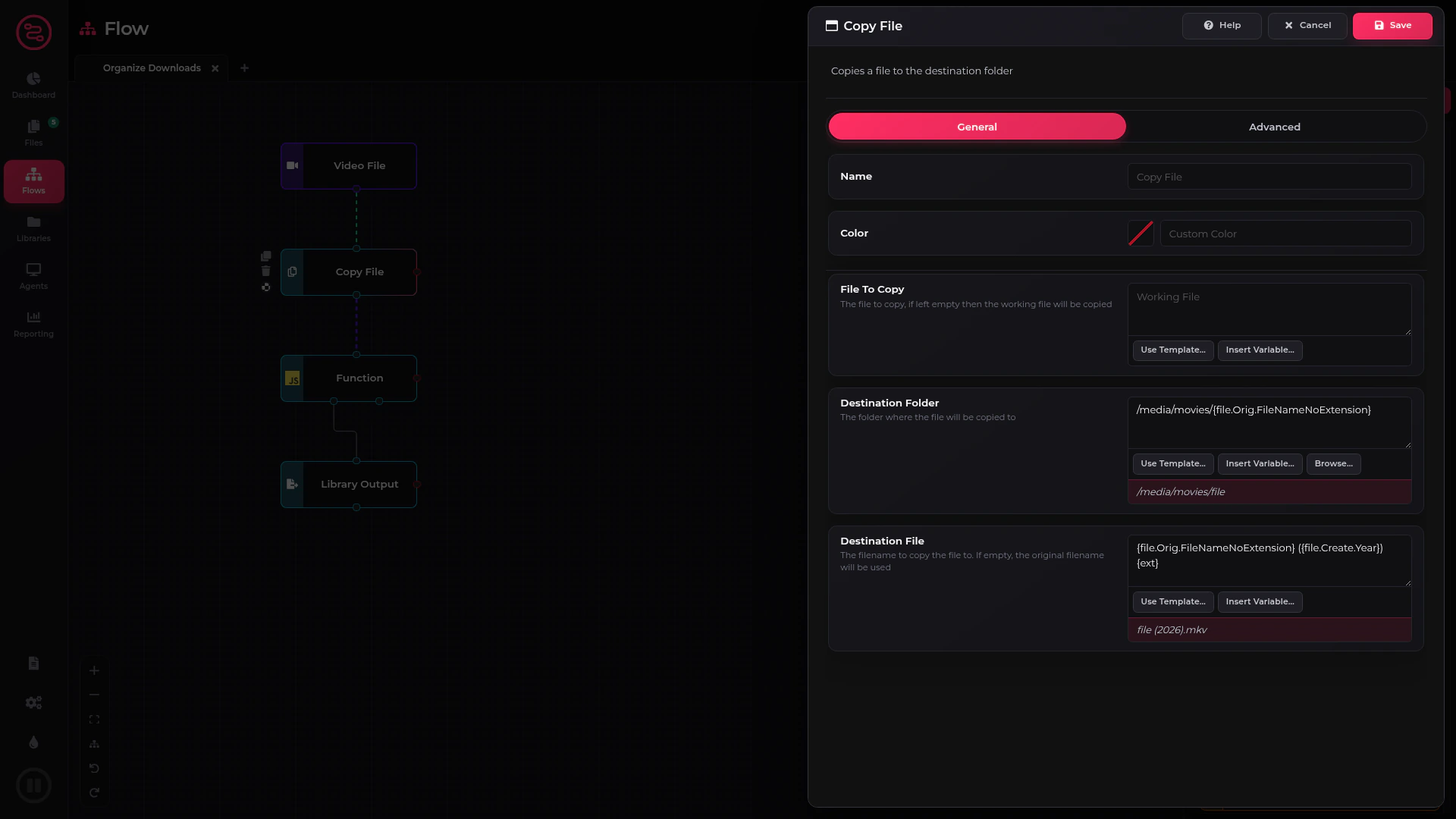
Insert Variable
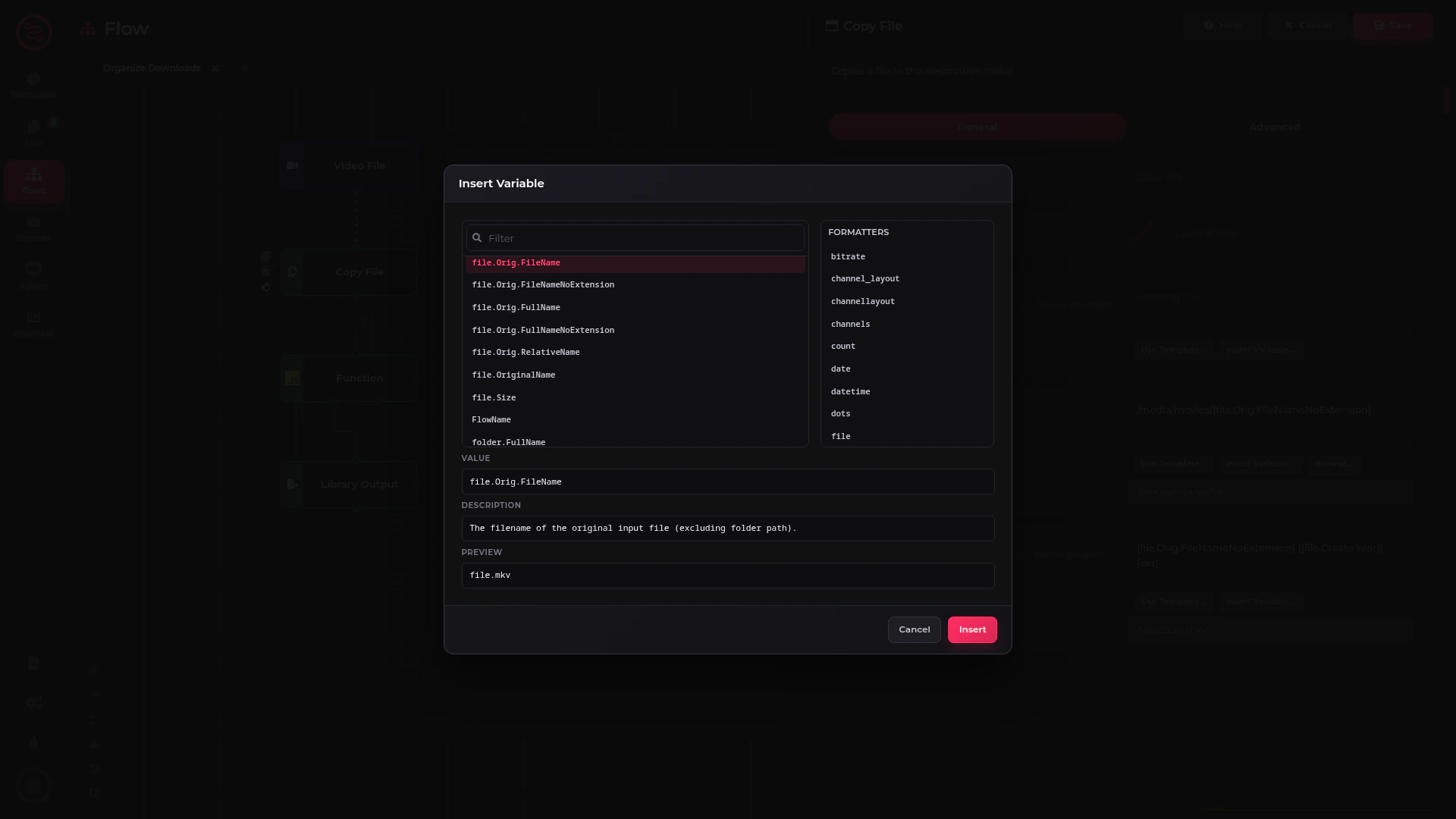
Insert Variable… opens a list of every variable available at that point in the flow. Filter the list by typing, select a variable to see its description and an example value, and optionally pick formatters to change how it is written (eg upper case, a date format or a file size). The Value shows exactly what will be inserted and the Preview what it gives. Insert adds it to the end of the field.
Use Template
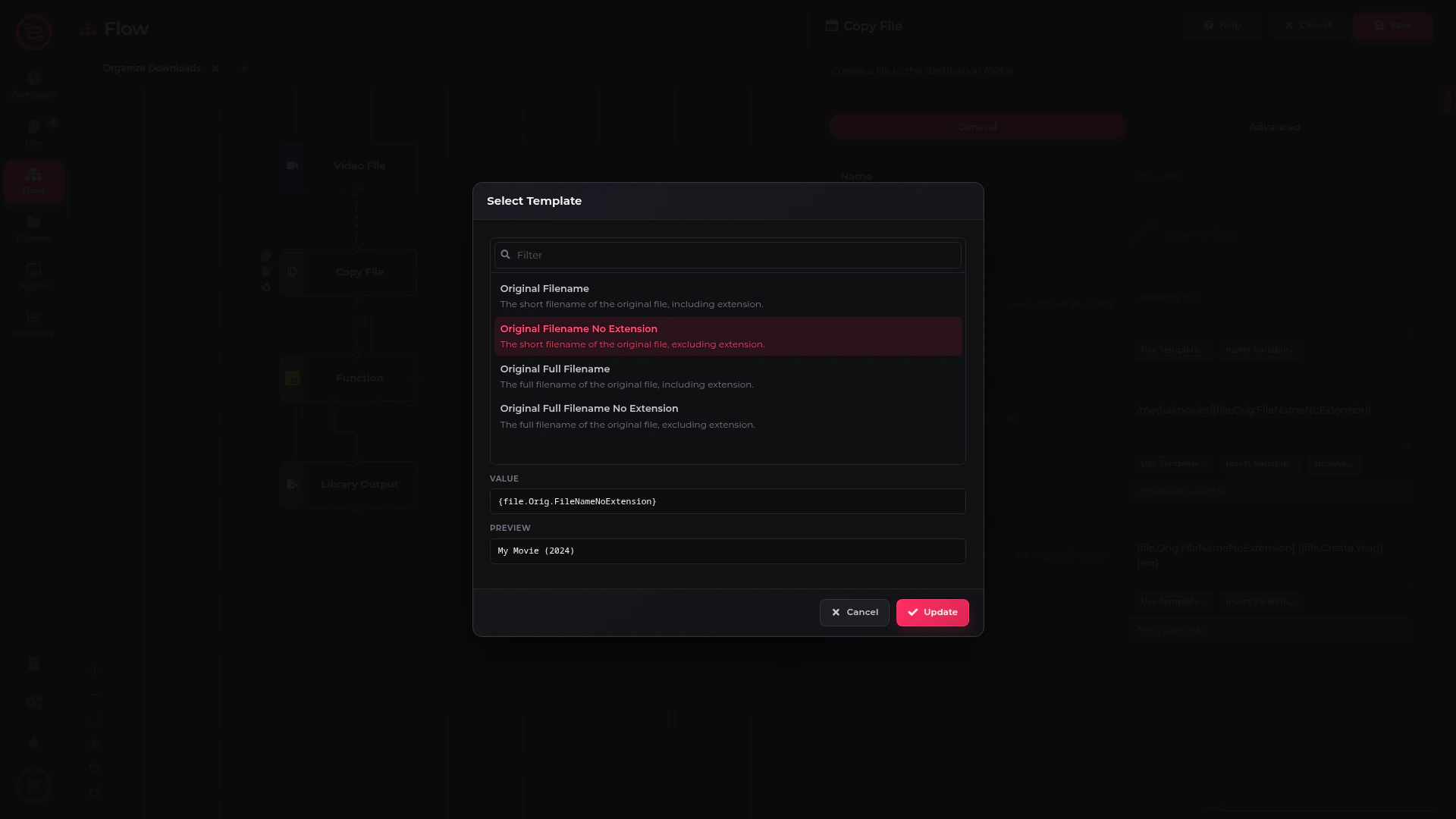
Use Template… offers ready made values for the field, for example the original file name with or without its extension, or a folder structure for movies or TV shows. Select one to see its value and a preview, then Update to replace the field's value with it. You can then change it further.
Using in a Function or Script
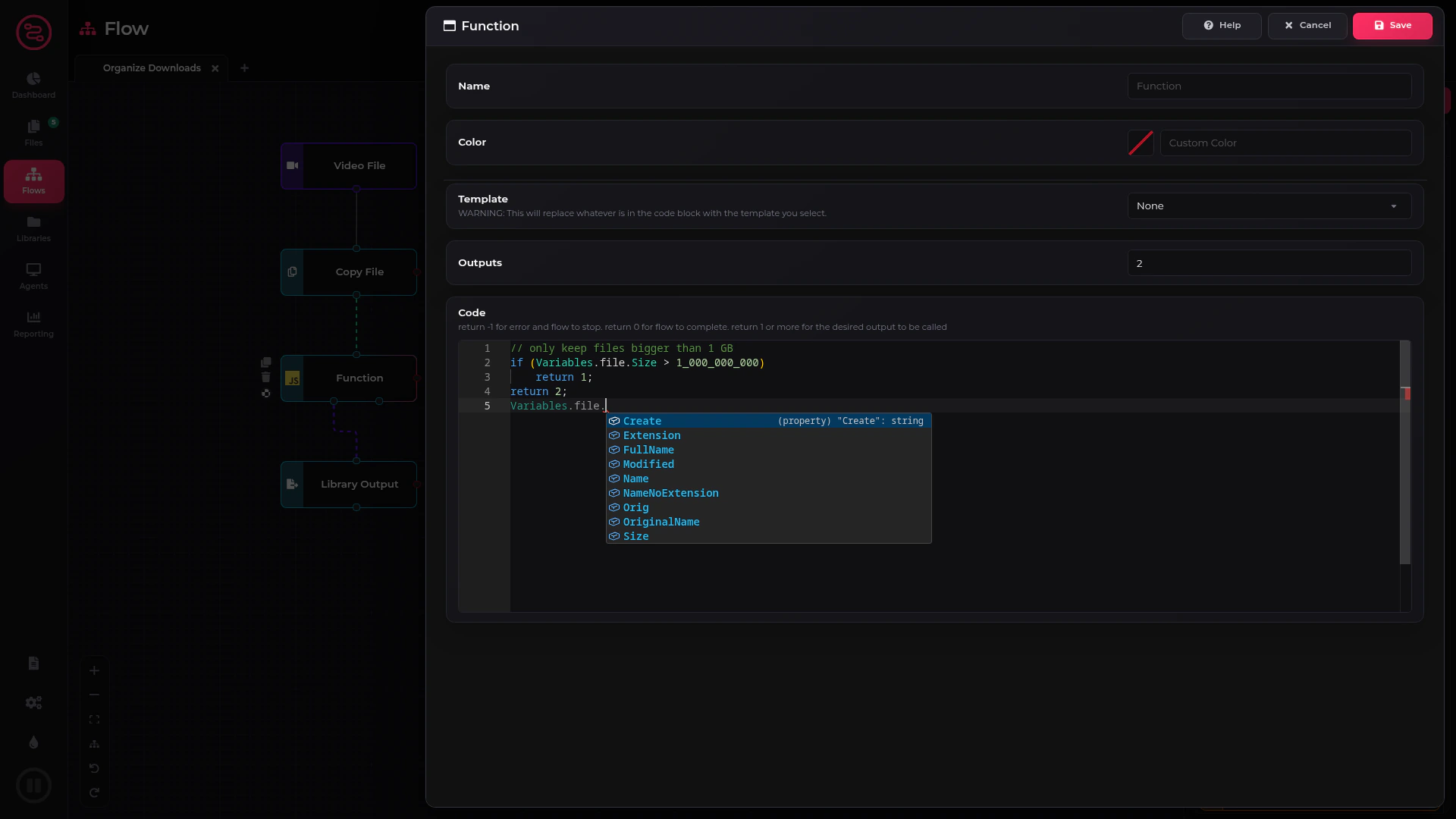
To use a variable inside a function or script, use the Variables object, for example:
Variables.file.Name
The code editor suggests the variables as you type.
See Standard Variables for the variables every flow has, and Formatters for changing how a variable is written.