Image Formula
Image Formula allows you to automate image processing tasks such as format conversion and image resizing across your media libraries.
General Info
Configure the identity and descriptive metadata for your Image Formula.
- Name: Set a unique and descriptive name for the formula.
- Description: Add optional notes detailing what this image formula does.
Container & Formatting
Choose the target output image format for your files.
- Container: Select the output image format from the drop-down menu:
JPEGPNGWebPIcon(.ico)Icns(.icns)
Resize Settings
Control image dimensions and scaling behavior.
- Resize: Toggle switch to enable or disable image resizing.
- Disabled: Keeps the original image dimensions. Disabling this option hides the width/height inputs and resize mode options.
- Enabled: Displays target width/height inputs and resize mode selections.
Dimensions & Resize Modes
When Resize is enabled, specify your target resolution and resize strategy:
- Dimensions (
Width×Height): Set the target width and height in pixels (e.g.,1920×1080). - Resize Modes: Select one of four visual scaling options to determine how the image fits the target dimensions:
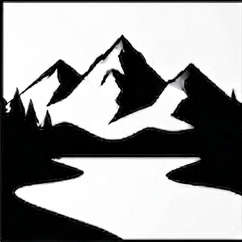
Cover
Scales the image to cover the target dimensions, cropping edges if necessary to maintain aspect ratio.
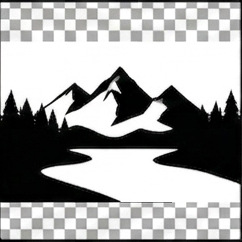
Contain
Scales the image to fit entirely within the target dimensions while preserving aspect ratio.
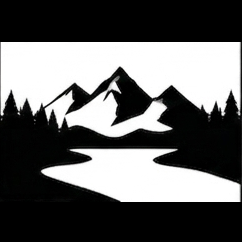
Pad
Scales the image to fit within the target dimensions and adds padding to fill the remaining area.
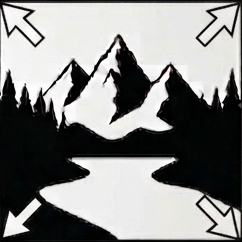
Fill
Stretches or distorts the image to fill the exact target width and height.