Flow Editor
The Flow Editor is where you design and build flows. It provides a full visual canvas with drag-and-drop functionality so you never have to write code. This is the core interface for creating automated file processing pipelines in FileFlows.
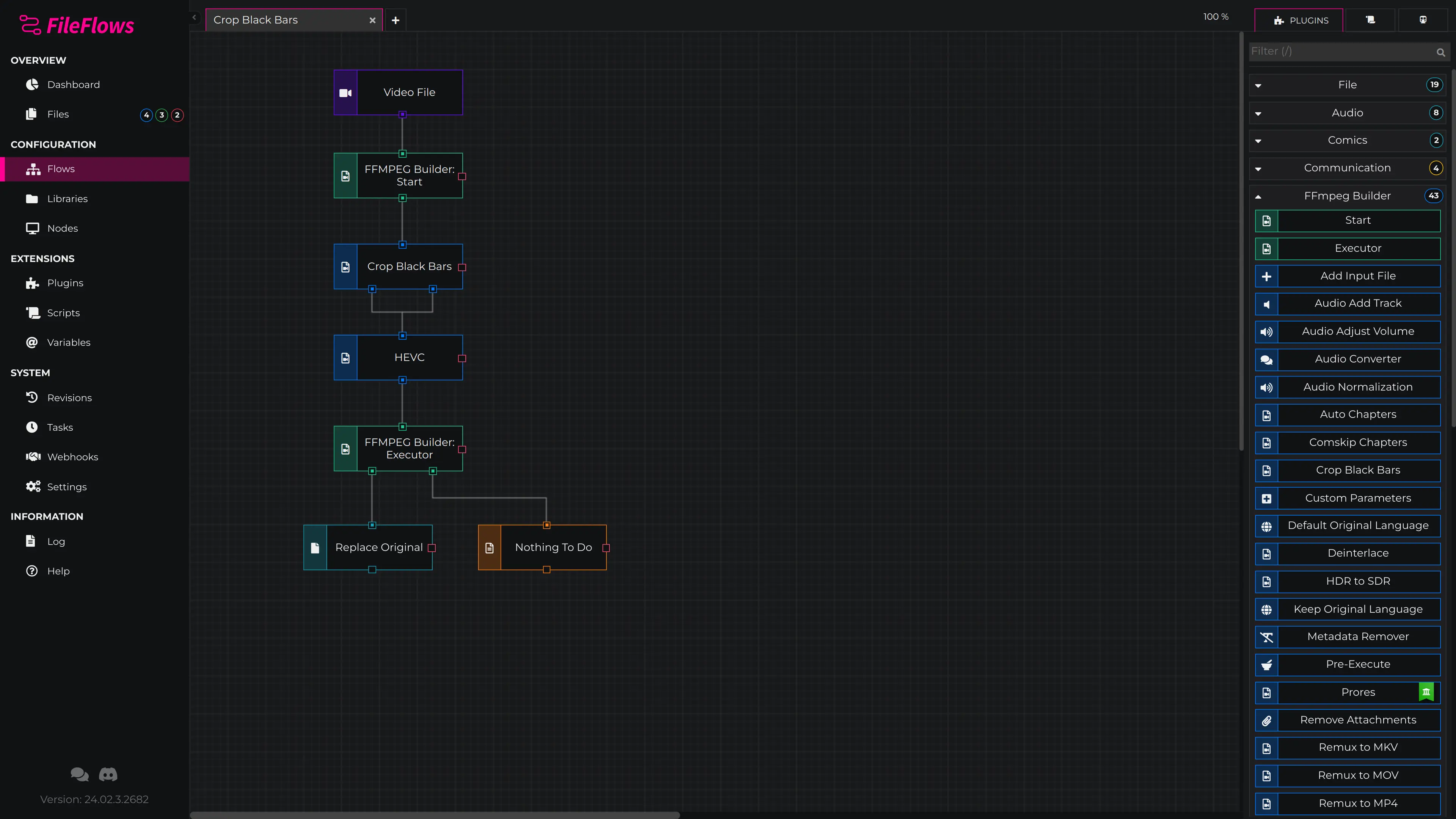
Creating a Flow
- Every flow requires a single Input flow element. This is the entry point where files enter the pipeline. Inputs have no inputs and only one output.
- Common inputs: Input File, Video File
- Drag additional flow elements from the right-side menu onto the canvas as needed.
- Connect elements by clicking an output port and dragging to an input port. A line will illustrate the flow's execution path.
- Double-click any flow element to configure its properties and access help text.
- Save your flow and assign it to one or more libraries.
Flow Elements
Flow elements are the building blocks of your flow. They appear in the right-side menu of the editor and can come from three sources:
- Plugins – Built-in and third-party extensions
- Scripts – Custom scripts (almost always JavaScript)
- Sub Flows – Reusable flow components
An instance of a flow element placed on the canvas is called a flow part.
Inputs
Every flow must have exactly one Input flow element. Inputs have no inputs and only one output, marking the starting point for processing.
- A single input can accept multiple connections from different outputs.
- Flow elements must be connected for them to be processed.
Outputs
Flow elements can have zero or more outputs. Depending on the result of the flow element's execution, the corresponding output is triggered and the flow continues along that path.
Connection Rules
- Each output supports a single connection to one input.
- A single input can accept multiple connections from different outputs.
- If an output is left disconnected and that output is called, the flow ends.
Typical Output Patterns
When a flow element has two outputs, the first usually represents a "True" or "processed" condition, while the second represents a "False" or "skipped" condition. For example: call output 1 if the video is HEVC, call output 2 if it is not.
Failure Outputs
Some flow elements provide an optional failure output. This fires if the element encounters an error during execution.
- If the failure output is left disconnected, the flow aborts and the job is marked as failed.
- If connected, you can handle the error gracefully and continue the flow. For example, if hardware encoding fails, you could fall back to software encoding.
You can mouse over an output port to see what the output means.
Configuring Flow Elements
Double-click any flow element on the canvas to open its configuration panel. Here you can:
- Set parameters and options specific to that element.
- Read help text describing what the element does and how to use it.
- Save changes and return to the canvas.
Flow Properties
Right-click inside an empty area of the flow canvas and select Properties to open advanced flow settings.
General
| Property | Description |
|---|---|
| Description | Document what the flow does. Used when exporting this flow as a template. |
| Author | Name of the author. |
| Variables | Initial variable values set when the flow starts. These can be used in any flow element expression and can be modified during execution. |
Fields (Template Export)
When exporting a flow as a template, you can define fields that template users will fill in. This lets you parameterize flows for reuse.
| Field | Description |
|---|---|
| Name | The field name. Can be a variable like Output_Path, or a strong name like ElementName.FieldName. |
| Type | Determines what input control is shown to the template user. |
| Required | Whether the field must be set. |
| Default | Default value if not provided. |
| If / If Value | Show this field only if another field matches a given value or regex. |
| If Not | Show this field if the other field does NOT match. |
Sub Flows
A sub flow is a reusable flow element that encapsulates a sequence of actions or logic into a single component. Sub flows can accept input parameters, have multiple outputs, and be dropped into any standard flow just like a built-in flow element.
See Sub Flows for details on creating and using sub flows.