Disc
The Disc page rips audio CDs and DVDs. Insert a disc, check the details Flux finds for it, choose the tracks or titles you want, and Flux saves them as files. It uses the same conversion settings as the rest of Flux, so you can process them locally or send them to your FileFlows Server.
Disc ripping needs Flux to be connected to a licensed FileFlows Server. See Configuration to connect Flux to your server.
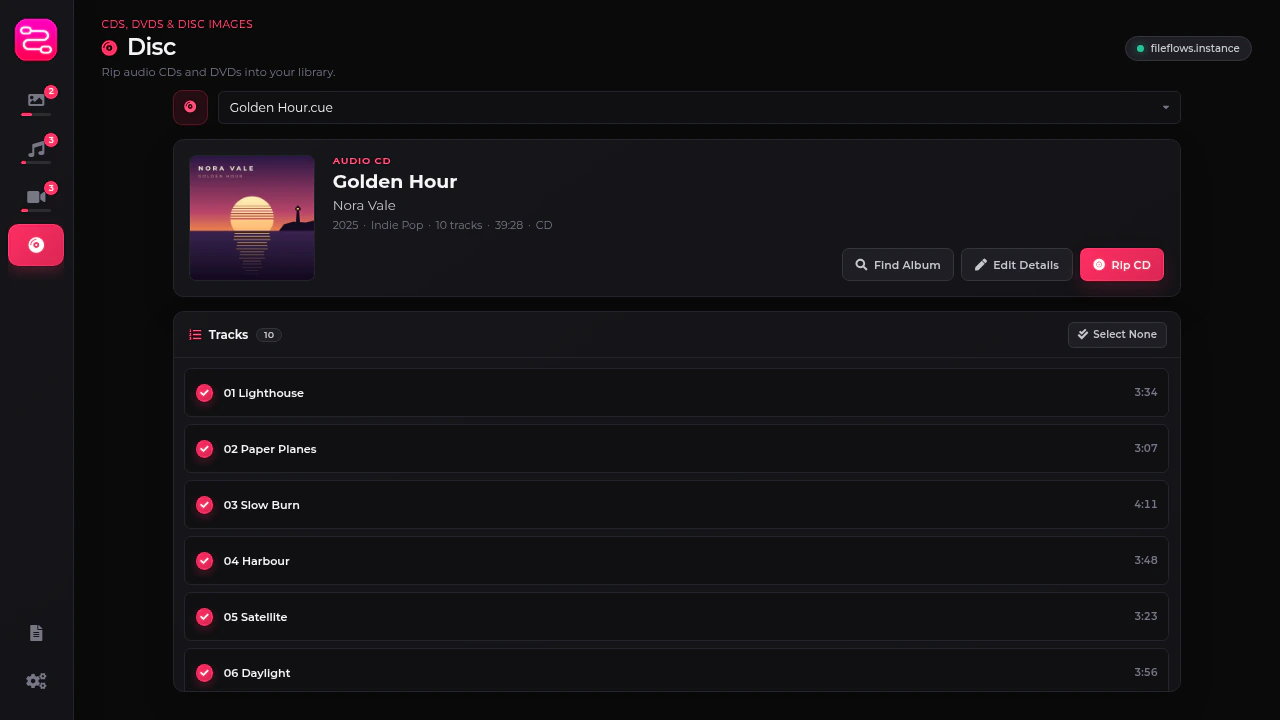
Choosing a disc
Flux lists your optical drives at the top of the page and reads the disc in the selected drive. You don't need to refresh after inserting a disc, Flux notices it within a few seconds.
You can also open a disc image instead of using a drive. Choose Open Image from the drive list and pick a .cue, .bin or .iso file. To open a DVD's VIDEO_TS folder, pick any .ifo file inside it, such as VIDEO_TS.IFO.
If Flux says it does not have permission to read the drive, add your user to the cdrom or optical group (depending on your distribution), then log out and back in.
Audio CDs
When you insert an audio CD, Flux looks it up on MusicBrainz and fills in the album, artist, year, track names and cover art.
- Releases: if the same CD was released more than once (for example a standard and a deluxe edition), pick the right one from the list under the album name.
- Find Album: if the CD isn't found, or the wrong album is shown, search MusicBrainz by artist and album name.
- Edit Details: change the album, artists, year, genre or disc number yourself.
- Cover: click the cover to use a different image.
All tracks are selected to start with. Click a track to leave it out, or use Select All / Select None.
Click Rip CD (or Rip n Tracks) to open the audio conversion dialog, the same one used on the Audio page. Choose the codec, bitrate and where to save the files, and whether to process them locally or with your FileFlows Server. The tracks are tagged with the album details and cover.
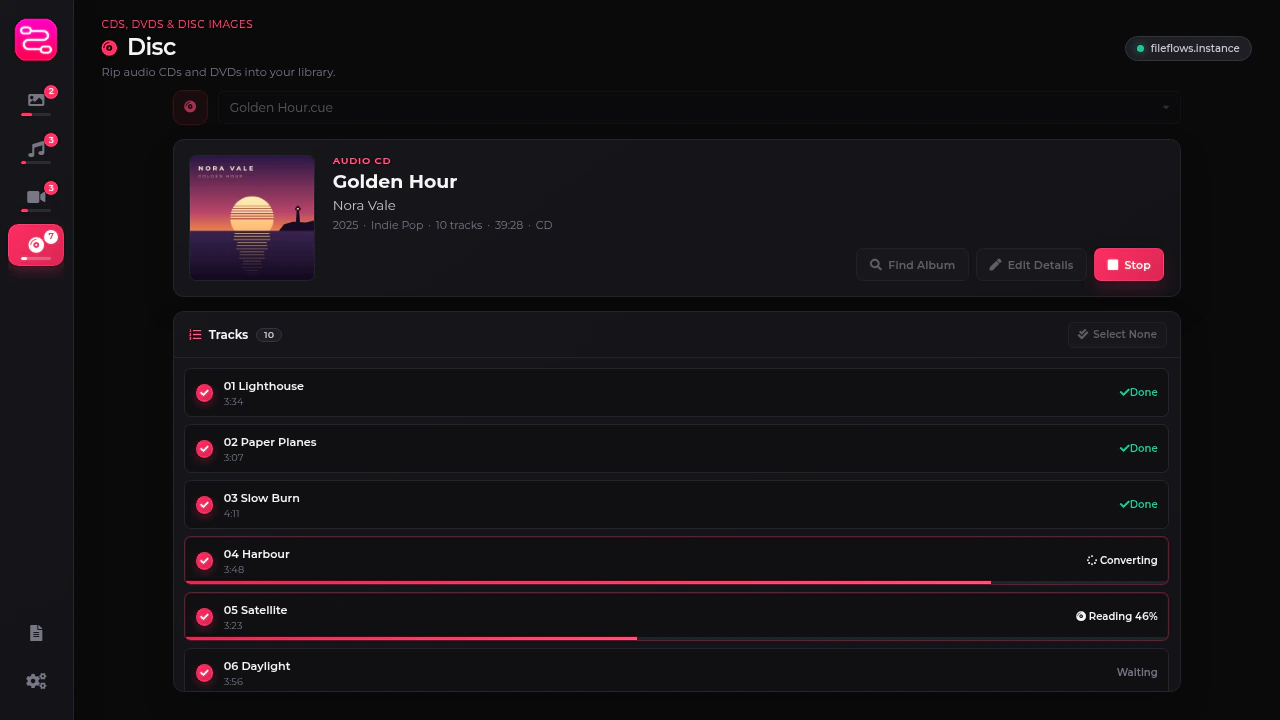
Each track is read from the disc, then converted. If a scratched disc has sectors that can't be read, Flux replaces them with silence and shows how many on the track. Click Stop to cancel the rip.
Save Image saves the whole CD as a BIN/CUE disc image, a .bin of the CD's audio and a .cue sheet listing its tracks, so you can rip it again later without the disc. An audio CD can't be saved as an ISO, because an ISO only holds a data disc and has no way to store audio tracks.
DVDs
Flux can only rip DVDs that aren't copy protected, such as home videos and discs you've burned yourself. It doesn't remove copy protection. Most commercial movie DVDs are protected, and Flux shows This DVD is copy protected when you insert one.
When you insert a DVD, Flux lists its titles. The longest is marked as the main feature. Short titles such as menus and trailers are hidden, click Show All to see them. Each title shows its length, chapters, audio tracks and subtitles.
Click Find Match to look the disc up on TMDB as a movie or TV show. The match is used to name the files.
Select the titles you want and click Rip. The rip dialog lets you choose:
| Option | Description |
|---|---|
| Container | MKV, MP4, MPG or AVI. |
| Video | Keep Original copies the video exactly as it is on the disc (MPEG-2). Nothing is lost, but the files are large. Convert re-encodes it with the same video settings as the Video page. |
| Audio | Which of the disc's audio tracks to keep. |
| Subtitles | MKV and MPG keep the DVD's subtitles. MP4 can't hold them, but a FileFlows Server with Forge configured can convert them to text subtitles. |
| NFO file | Saves the movie's details next to the main feature, for Kodi, Jellyfin and Emby. |
| Save to | This computer, or a folder on your FileFlows Server. |
Keeping the original video doesn't need your FileFlows Server, the titles are saved straight to the destination.
Save Image saves an unprotected DVD as a disc image. Click the arrow beside the button to pick the format:
| Format | Files |
|---|---|
| ISO | An .iso of the disc, the format most apps expect for a DVD. |
| BIN/CUE | A .bin of the disc (the same data as the ISO) and a .cue sheet describing it. |
The button saves the format you picked last.
Blu-ray
Blu-ray discs aren't supported yet. Flux detects them and shows Blu-ray detected, but can't rip them.