Video
When you add a video to Flux, the conversion dialog lets you tune exactly how it should be processed. At the top of the dialog is a Local / FileFlows toggle:
- Local — Process the video directly inside Flux using the options below.
- FileFlows — Send the video to a FileFlows Server using the formula configured on the server.
Some advanced options (such as subtitle generation and black-bar cropping) are only available when processing through a FileFlows Server, because they rely on server-side plugins and metadata lookups.
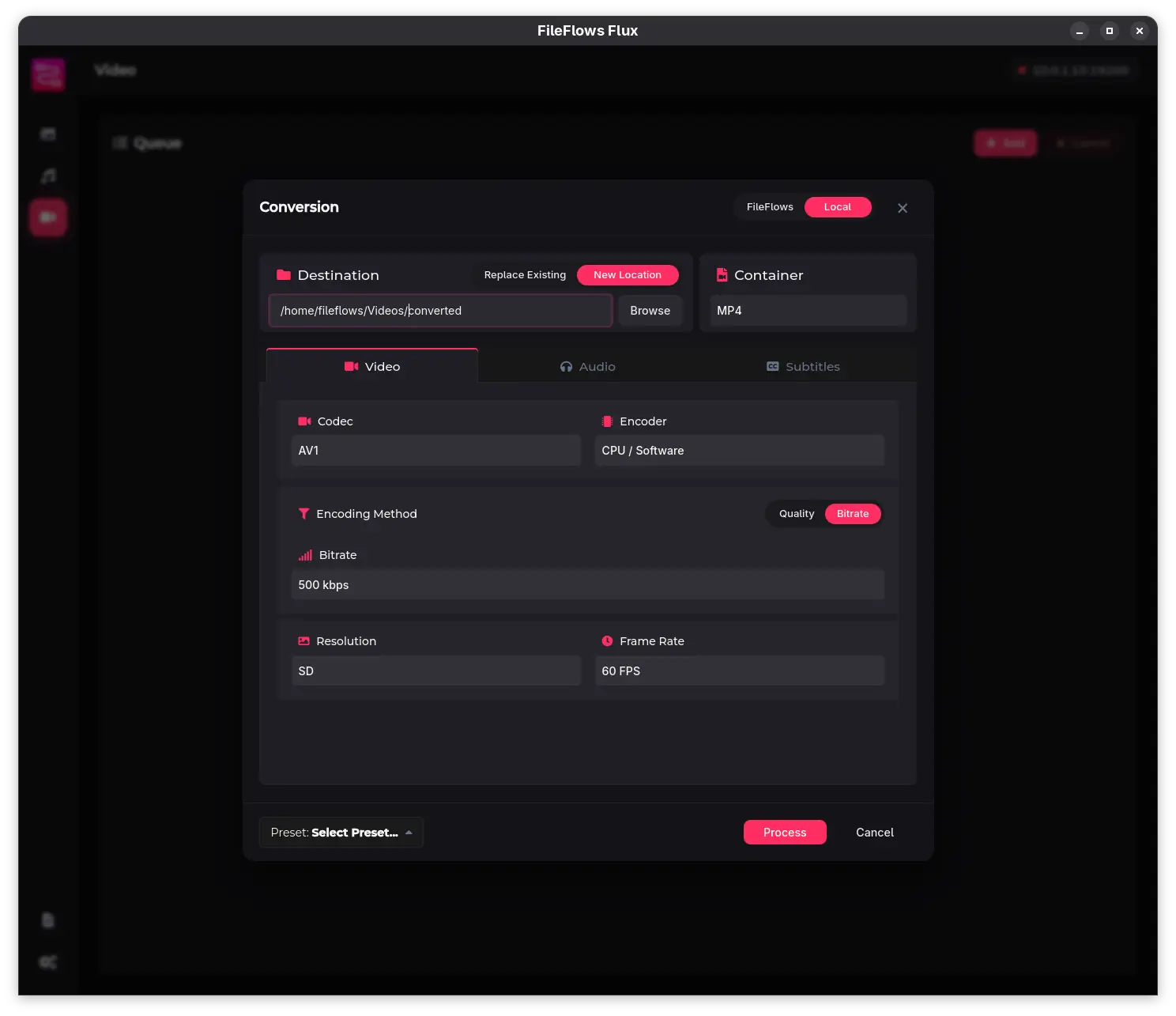
Container
Choose the output container:
| Container | Notes |
|---|---|
| MKV | Best compatibility with multiple audio and subtitle tracks. |
| MP4 | Widely supported by players and browsers. |
| WebM | Optimized for web delivery. |
| Animated GIF | Converts the video to an animated GIF. |
Video codec
| Codec | Notes |
|---|---|
| Copy | Pass through the original video stream without re-encoding. |
| H.264 | Broad compatibility; good for general-purpose playback. |
| H.265 / HEVC | Better compression than H.264 at similar quality. |
| AV1 | State-of-the-art compression; best for archival and bandwidth savings. |
| VP9 | Web-optimized alternative to AV1. |
Encoder
When processing locally, you can select a hardware or software encoder:
- CPU / Software — Works everywhere; slower but universally available.
- NVIDIA (NVENC) — Hardware encoding on NVIDIA GPUs.
- Intel QSV — Hardware encoding on Intel CPUs with integrated graphics.
- AMD (AMF) — Hardware encoding on AMD GPUs.
- VAAPI (Linux) — Hardware encoding on Linux with supported Intel/AMD GPUs.
- Apple VideoToolbox — Hardware encoding on Apple Silicon and recent Intel Macs.
- Vulkan — Cross-platform hardware encoding via Vulkan.
Flux automatically detects which hardware filters your FFmpeg installation supports and filters the encoder list accordingly.
Encoding method
| Method | Description |
|---|---|
| Quality | Target a specific quality level. Lower values mean higher quality and larger files. |
| Bitrate | Target a fixed bitrate. Useful when you need to hit a specific file size or streaming constraint. |
| Optimized | Iteratively find the smallest file that meets a quality threshold. Only available when processing through a FileFlows Server. |
Resolution
Choose a target resolution or leave it on Automatic to preserve the source dimensions:
- SD (480p)
- 720p
- 1080p
- 1440p / 2K
- 4K
Frame rate
Set a target frame rate, or leave it on Automatic to keep the source frame rate.
Crop black bars
When processing through a FileFlows Server, you can enable automatic detection and removal of black bars from the video frame.
Audio
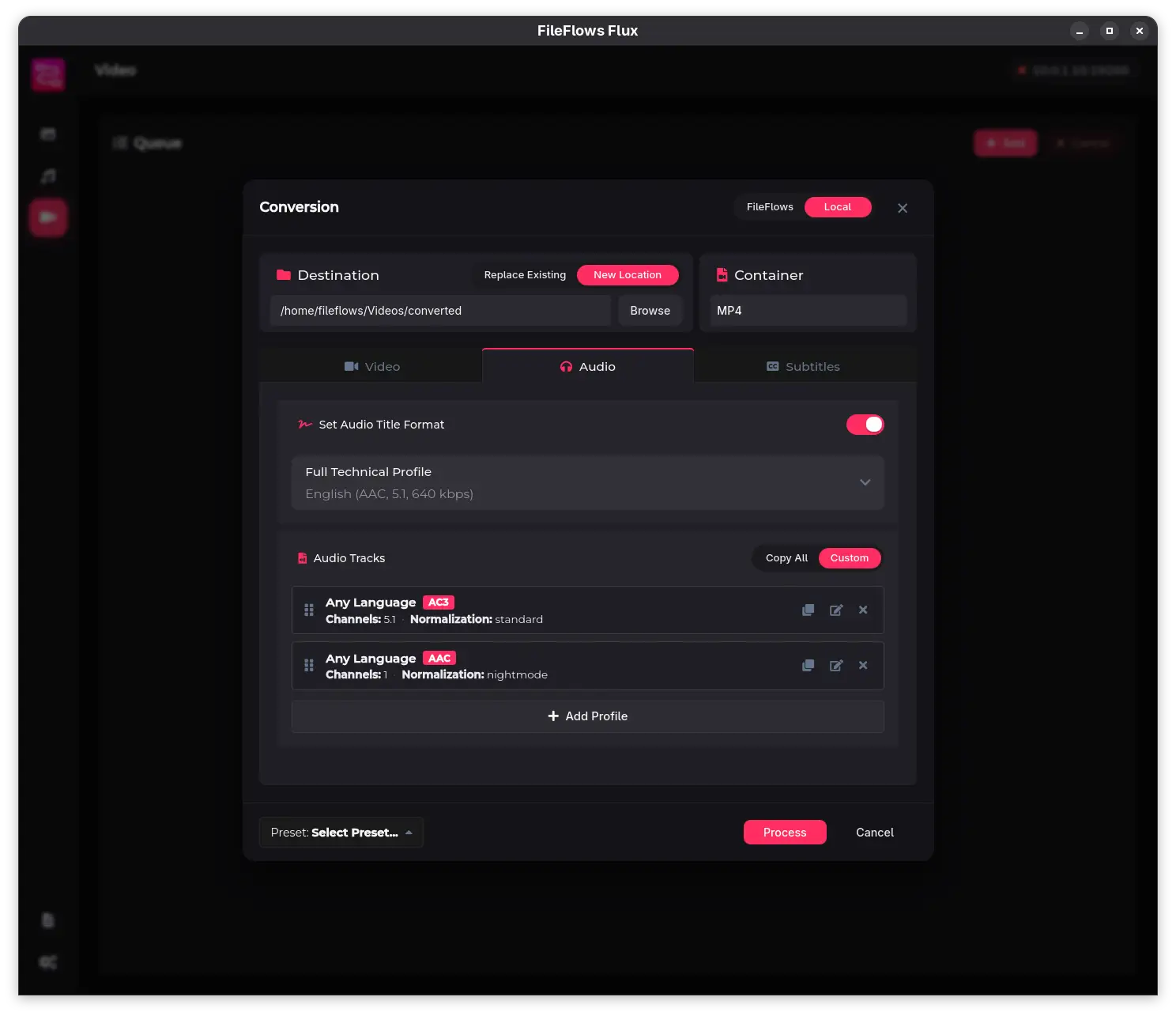
- Copy all audio tracks — Pass through every audio track without re-encoding.
- Custom audio profiles — Define per-language rules that select codecs, channel layouts, and bitrates. Supported codecs include AAC, MP3, FLAC, Opus, and copy.
- Title format — Customize how audio track titles are formatted in the output file.
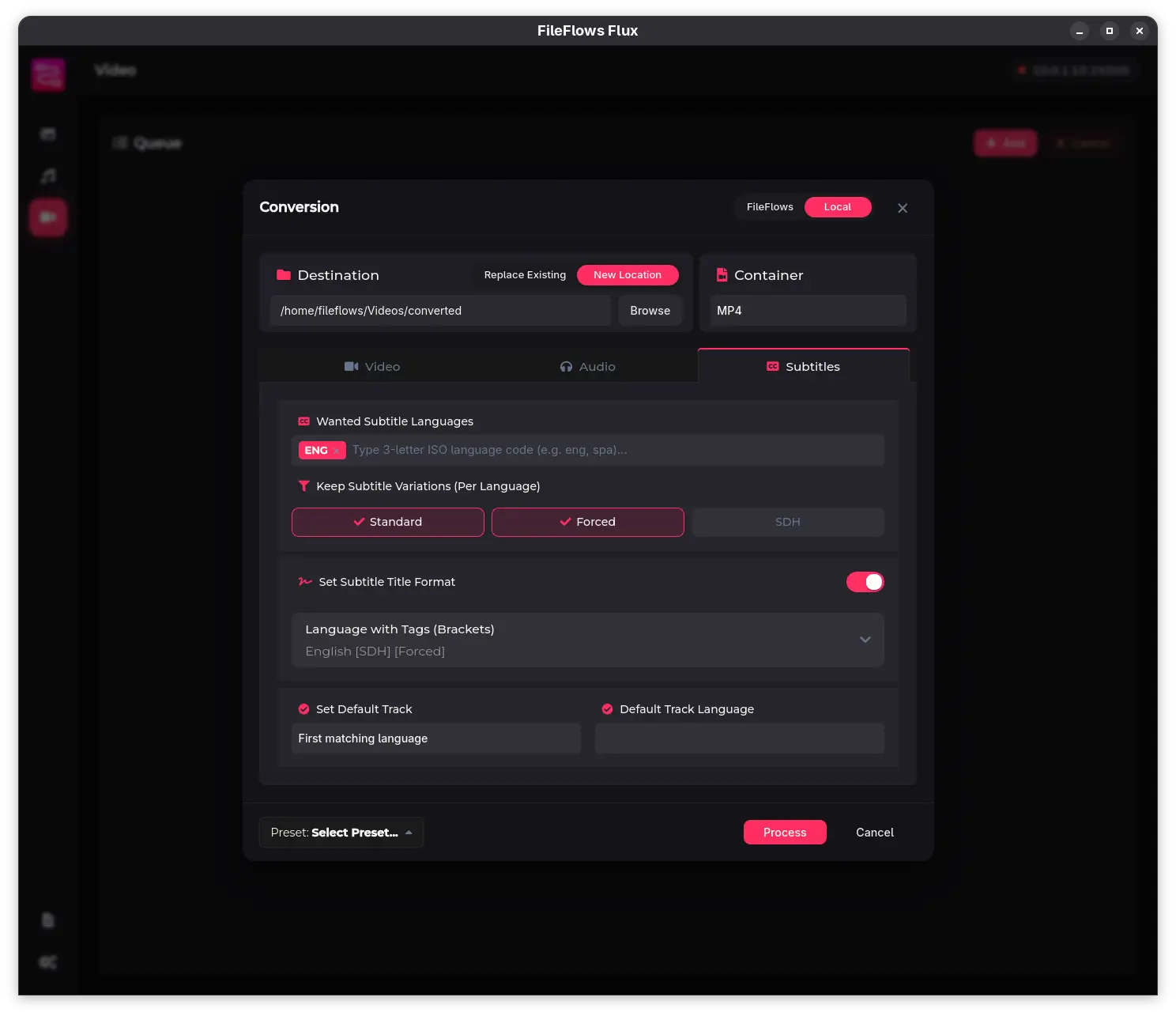
Subtitles
- Wanted languages — Whitelist subtitle languages to keep; others are removed.
- Subtitle types — Choose which subtitle types to retain: Standard, Forced, and/or SDH.
- Generate if missing — When processing through a FileFlows Server with FileFlows Forge configured, missing subtitles can be automatically generated or identified.
- Convert image subtitles — When processing through a FileFlows Server, bitmap-based subtitles (PGS, VOBSUB) can be converted to text-based formats.
- Title format — Customize how subtitle track titles are formatted.
Rename format
You can define an output filename pattern using metadata variables. For example:
{Title} [{Year}].{ext}
Flux will replace the variables with values from the source file metadata and save the output to the chosen destination.